Author: Jat
If you’ve updated your hybrid app to target Android 15 (API 34) and noticed broken layouts, cut-off content, or overlapping UI — you’re not alone.
Android is evolving to embrace immersive, edge-to-edge design. But hybrid apps built using Capacitor, Cordova, or Ionic often break because they rely on WebView, which doesn’t automatically adapt to system gesture insets or modern screen shapes.
🌐 What is Edge-to-Edge UI?
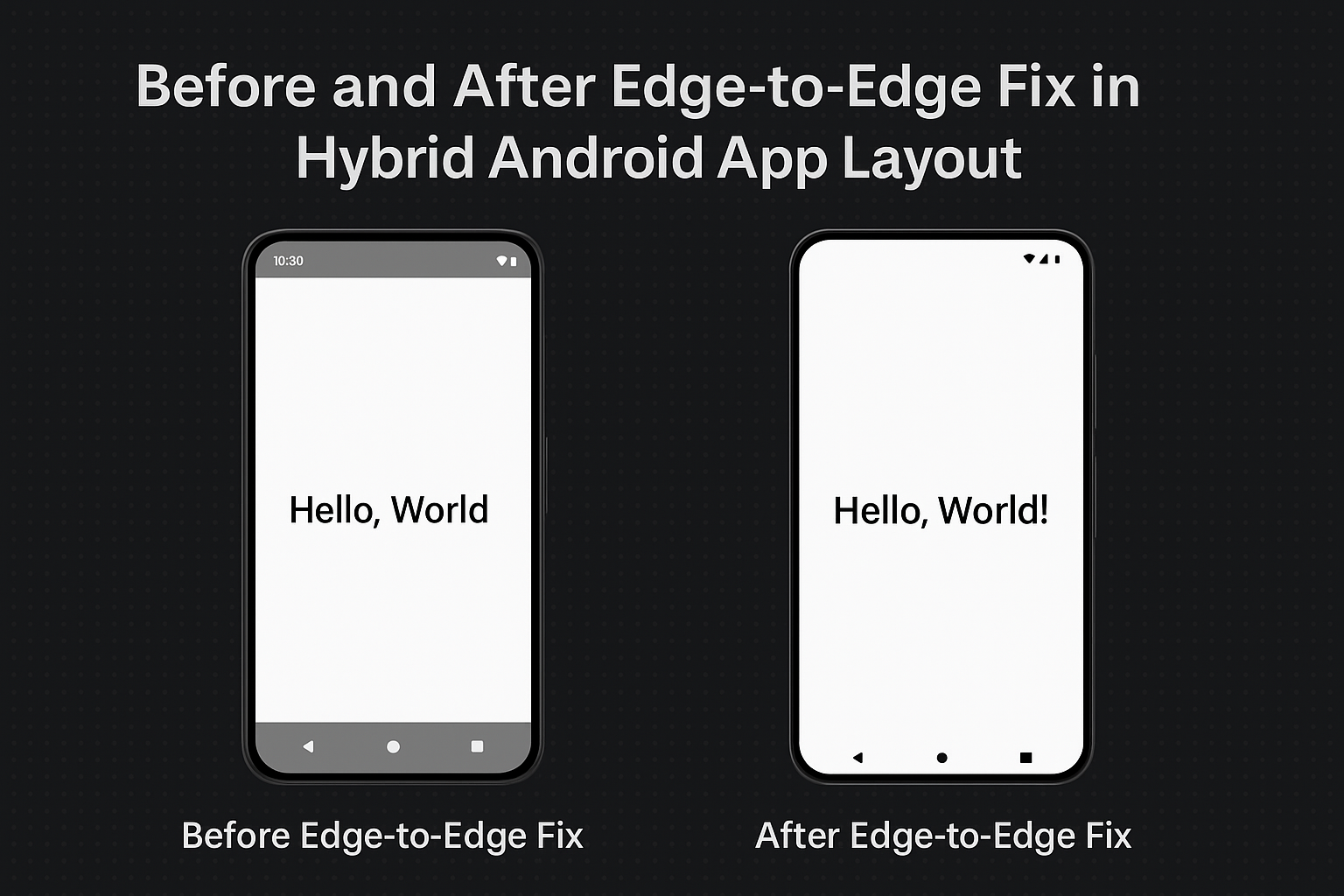
Edge-to-edge layout means your app’s content extends beneath the status bar, navigation bar, and gesture areas — using every available pixel.
Android encourages this layout to support:
- Immersive design on full-screen devices
- Compatibility with gesture navigation
- Maximum space usage on notch, punch-hole, and curved displays
Read the official Android Edge-to-Edge Design Guide.
🎯 Why Was It Introduced?
- Maximize screen real estate — avoid wasting space on top/bottom bars.
- Gesture navigation compatibility — gestures now replace buttons.
- Modern UX standards — aligned with Google’s Material You design language.
- Cross-device consistency — Pixel, Samsung, OnePlus now follow Android’s rules.
💥 Why Hybrid Apps Break
Hybrid apps rely on WebView, which doesn’t adapt automatically to insets. The result?
- Content may get hidden behind the system UI
- Safe areas are ignored unless manually defined
- CSS-only solutions fail unless the native layer is configured correctly
🛠 How to Fix Edge-to-Edge in Hybrid Apps
✅ 1. Set Target SDK to 34
compileSdkVersion 34
targetSdkVersion 34
✅ 2. Update Native Code for Insets
In MainActivity.java or MainActivity.kt:Java:
if (Build.VERSION.SDK_INT >= Build.VERSION_CODES.R) {
  getWindow().setDecorFitsSystemWindows(false);
} else {
  getWindow().getDecorView().setSystemUiVisibility(
    View.SYSTEM_UI_FLAG_LAYOUT_STABLE |
    View.SYSTEM_UI_FLAG_LAYOUT_FULLSCREEN |
    View.SYSTEM_UI_FLAG_LAYOUT_HIDE_NAVIGATION
  );
}Kotlin:
if (Build.VERSION.SDK_INT >= Build.VERSION_CODES.R) {
  window.setDecorFitsSystemWindows(false)
} else {
  window.decorView.systemUiVisibility = (
    View.SYSTEM_UI_FLAG_LAYOUT_STABLE or
    View.SYSTEM_UI_FLAG_LAYOUT_FULLSCREEN or
    View.SYSTEM_UI_FLAG_LAYOUT_HIDE_NAVIGATION
  )
}
✅ 3. Make System Bars Transparent
In styles.xml:
<item name="android:statusBarColor">@android:color/transparent</item>
<item name="android:navigationBarColor">@android:color/transparent</item>
✅ 4. Handle Safe Areas in CSS
html, body {
  padding-top: env(safe-area-inset-top);
  padding-bottom: env(safe-area-inset-bottom);
  padding-left: env(safe-area-inset-left);
  padding-right: env(safe-area-inset-right);
}
For Ionic:
:root {
  --ion-safe-area-top: env(safe-area-inset-top);
  --ion-safe-area-bottom: env(safe-area-inset-bottom);
}
✅ 5. Respect Gesture Areas
Don’t place buttons or toolbars flush against screen edges. Use padding or bottom spacing to avoid gesture interference.
🧪 Debug Tip
Use Android Studio Layout Inspector or this ADB command to inspect insets:
adb shell dumpsys window | grep -i inset🔗 External Resources
✅ Conclusion
Edge-to-edge layout isn’t just a design trend — it’s a requirement. Android 15 pushes for immersive, gesture-friendly apps. While hybrid apps need extra configuration, the result is a modern, polished experience that feels native.
By combining native insets with smart CSS, your hybrid app can look and behave like a top-tier Android experience — ready for the future.
Happy learnings!